Free AI Interview Assistant · Windows
ACExInterview
Real-Time Interview Copilot
Answers on your screen while the interview is still going.
It listens to the question and writes an answer based on your resume. Coding problems can go in as a screenshot. The interviewer can't see any of it on screen share. It's free; you just bring your own API keys.
Your screen, and theirs
The answer sits on top of the call where you can read it. Drag the divider to see what the interviewer gets over screen share.
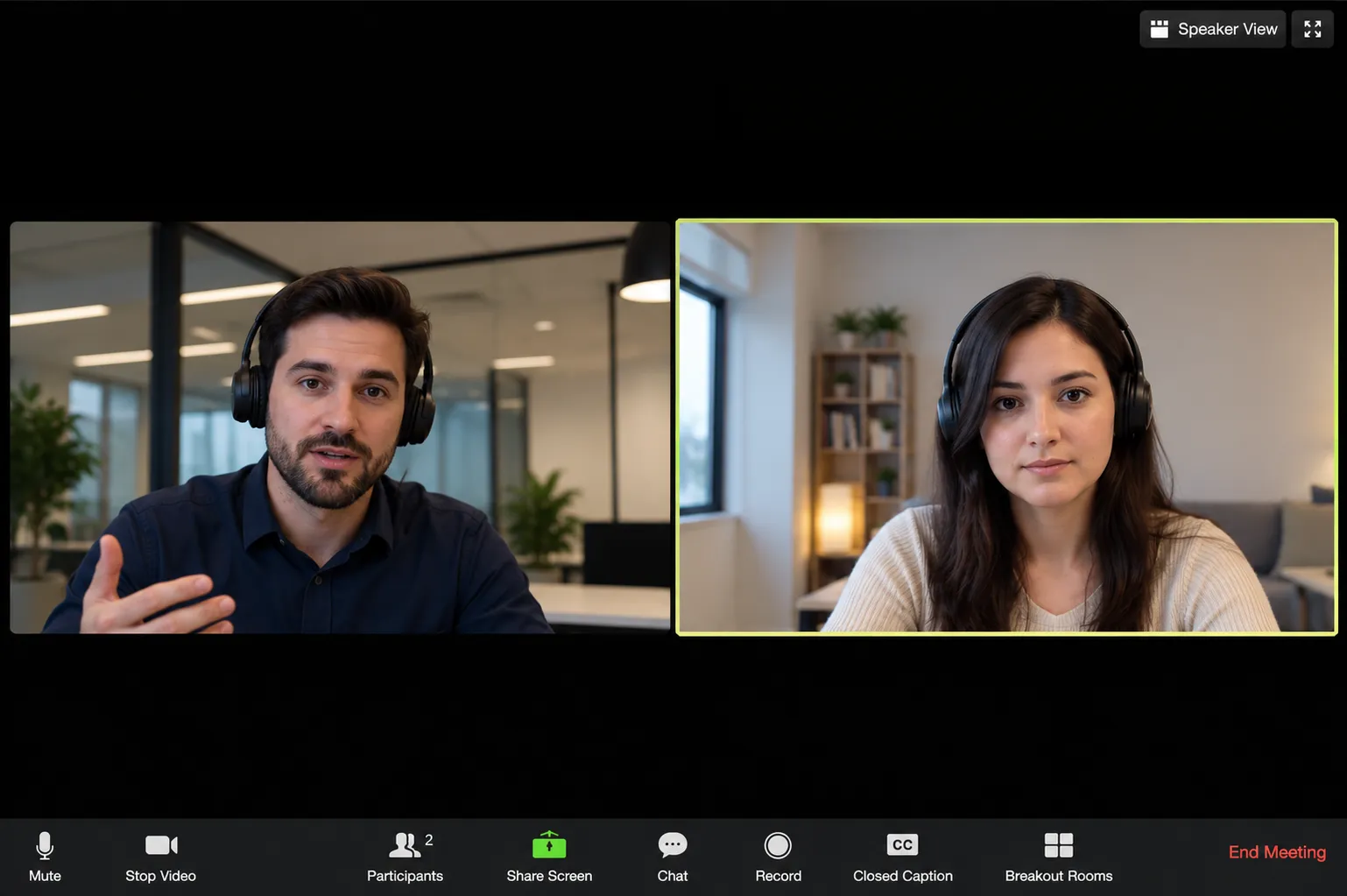
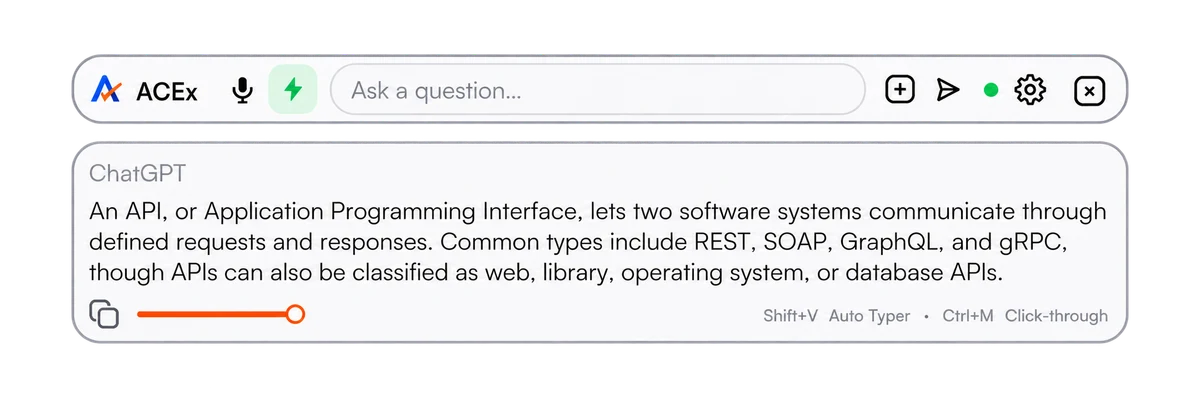
Click the logo to minimise it or drag it to move. Drag the right edge to resize. Hover an icon to see what it does.
Works with your call app
They see your screen. Not your answers.
The ACExInterview overlay is its own window, and Windows leaves it out of screen shares and recordings. Share your screen on Zoom, Google Meet, Microsoft Teams or any app around Hoot, and the answers stay on your monitor.
- Nothing to install or switch on inside the meeting app
- Coding rounds too: HackerRank, LeetCode, CodeSignal and more
- Alt+/ hides or shows the overlay any time
Hiding depends on how each app captures the screen, so do a quick test share before the real call. Follow the rules of the company you're interviewing with.
- Zoom
- Google Meet
- Microsoft Teams
- Webex
- HackerRank
- LeetCode
- CodeSignal
- Discord
- Slack
- GoTo Meeting
- Telegram
- Jitsi Meet
- HackerEarth
- Google Chat
- Messenger
- Signal
- Element
- Mattermost
- Zoho
- Google Chrome
- Firefox
- Brave
- Opera
- Vivaldi
- Calendly
- Google Calendar
- Loom
- Viber
- LINE
- Zalo
- TeamViewer
- Rocket.Chat
- BigBlueButton
- Vonage
During the call
It answers what they ask
It listens to the interviewer, ignores the small talk, and writes an answer for each actual question. Hold a key to talk, or turn on Auto Mode and leave it running.
Coding questions from a screenshot
If the problem is shared on screen instead of read out, press Ctrl+Alt+W, select it, and the AI gets the image.
Not visible on screen share
The overlay is left out of screen shares and recordings, so the other side of the call never sees it.
What you can change
You set these per session in the dashboard. The desktop app loads the session when it starts.
How it answers
- Uses your resume, the role, and any notes you add
- You pick the format, length, tone, and whether to use STAR
- Support Mode gives you short cue points instead of a script
- Desi Mode words answers the way people speak in India
- Follows asks like "in one line" or "walk me through it"
Listening and languages
- Push-to-talk, or Auto Mode for hands-free
- Ask in Hinglish, get the answer in Hinglish (Roman script)
- English, Hindi and 9 other languages, or auto-detect
- Behavioral, technical, and situational questions
- Filler and small talk are skipped
On your screen
- Not captured by screen share or recordings
- Auto Typer types the answer at a human pace (Shift+V)
- Snip part of the screen and send it to the AI
- Resize the answer panel to fit your screen
- Hide or show it with Alt+/ and change the opacity
- Use your own AI key: OpenAI, Gemini, Claude, Ollama and others
Setting it up
The dashboard shows the same steps in the same order.
Make an account
It's the same ACEx account as the rest of the site. You don't need to buy a plan.
Add your keys
Paste an AI key and a speech-to-text key in the dashboard. An OpenAI, Gemini, or xAI key can handle transcription on its own.
Set up a session
Upload your resume, add the company, and choose how the answers should read.
Install the app
Run the install command from your dashboard and pick ACExInterview. It loads your session when it opens.
Speech-to-text with


 Groq
Groq

or your OpenAI, Gemini, or xAI key
Our other apps
Your ACExInterview account works for these too.
ACEx
Our main Windows app. It has the same hidden overlay, plus paid plans with more models.
Explore ACExACExLite
An overlay that runs inside Safe Exam Browser, MSB, and similar locked-down browsers. It comes with Pro and Elite.
Explore ACExLiteIt's new, so expect a few bugs
If something crashes or looks wrong, tell us in the support chat. Bug reports are the main thing deciding what we fix next.
What is ACExInterview?
ACExInterview is a free, real-time AI interview assistant for Windows. It listens to the interviewer's questions through your microphone, generates answers drawn from your resume and session settings, and shows them in an overlay that is invisible to screen sharing. For coding rounds, it captures a screenshot of any on-screen problem and solves it instantly. The Auto Typer then types the answer at a natural, human pace — no subscription, bring your own AI key.
- 100%
- Free — no subscription
- 10+
- Languages including Hinglish
- 12+
- AI providers supported
- 5
- Speech-to-text engines
Questions
Is there a free AI interview assistant?
Yes. ACExInterview is a free AI interview assistant for Windows with no paid plan and no subscription. You create a free ACEx account and use your own AI key, so you only pay your AI provider for what you use, and some providers have free API tiers.
Is ACExInterview a free alternative to Final Round AI, Cluely, LockedIn AI or Interview Coder?
If you want a free interview copilot, yes. ACExInterview does the core job of those tools (live answers during the call, coding questions from a screenshot, hidden from screen share) without a subscription, because you bring your own AI key.
Do I need a credit card to use ACExInterview?
No. Signing up and using ACExInterview needs no card and no payment to us. The only costs are whatever your chosen AI provider charges for your own key.
Is ACExInterview really free?
Yes, there's no paid plan. You make an ACEx account and set up a session in the dashboard. You do need your own keys: one for the AI provider, and one for speech-to-text (Speechmatics, ElevenLabs, Groq, Gladia, or Deepgram) if your AI provider can't transcribe.
What can ACExInterview do?
It listens to the interviewer, skips small talk, and writes an answer to each actual question using your resume and session settings. You can hold a key to talk or leave Auto Mode on. Coding or written questions can be sent as a screenshot with Ctrl+Alt+W, and Shift+V has Auto Typer type the answer out at a normal speed.
Can the interviewer see it on screen share?
No. By default the overlay is left out of screen shares and recordings, so it only shows on your monitor. Alt+/ hides or shows it.
Does it help with coding interviews?
Yes. Spoken technical questions work the same as any other, and if a problem is shared on screen you can send it as a screenshot. You can set the session to focus on technical questions or leave it on all types.
Which languages are supported?
English, Hinglish, Hindi, Spanish, French, German, Portuguese, Arabic, Mandarin Chinese, Japanese, and Russian, or auto-detect. If you're asked in Hinglish, the answer comes back in Hinglish written in Roman script. Desi Mode makes English answers sound like Indian English.
Which AI models can I use?
Any of OpenAI, Gemini, Claude, DeepSeek, xAI, Groq, Mistral, OpenRouter, Perplexity, Celeris, and Inception with your own key, or a local model through Ollama. Celeris-1 and Inception's Mercury 2.5 are the fastest we've tried.
How do I install ACExInterview?
It uses the same install command as ACEx. Copy it from your dashboard, run it in PowerShell, and pick ACExInterview when the installer asks which edition you want.
How is ACExInterview different from ACEx and ACExLite?
ACExInterview is the free one, built only for interviews. ACEx is our main Windows app and has paid plans. ACExLite runs inside locked-down exam browsers like SEB and MSB. One account works for all three.
Does ACExInterview work with Zoom, Google Meet, and Microsoft Teams?
Yes. ACExInterview works alongside any video conferencing platform — Zoom, Google Meet, Teams, Webex, and others. The overlay sits outside the call window and is hidden from screen share, so the interviewer never sees it.
Which interview types does ACExInterview support?
ACExInterview handles technical interviews (coding, system design, data structures), behavioral interviews (STAR method, situational questions), and HR rounds. It works across roles including software engineering, data science, product management, and more.
Can ACExInterview help with behavioral (STAR method) interview questions?
Yes. ACExInterview reads from your uploaded resume and session notes, so when a behavioral question comes up — "tell me about a time you..." — it pulls a relevant example in STAR format, tuned to the answer length and tone you set in your session.
Does ACExInterview work for freshers and entry-level interviews?
Yes. Freshers use ACExInterview to get answers tailored from their resume, projects, and skills. It covers HR rounds, technical screening, coding questions, and more — making it useful for students and recent graduates entering the job market.
What AI providers does ACExInterview support?
ACExInterview is BYOK (bring your own key). Supported providers include OpenAI, Google Gemini, Anthropic Claude, DeepSeek, xAI Grok, Groq, Mistral, OpenRouter, Perplexity, Celeris, Inception, and local models via Ollama. For fastest responses, Celeris-1 and Inception Mercury are recommended.
Does ACExInterview require an internet connection?
Yes, ACExInterview needs an internet connection to transcribe audio and query the AI model. All processing goes through your own API keys — no audio or conversation data is stored on ACEx servers.
Try it before your next interview
Make an account, add your keys, set up a session. There's no subscription.
Create a free account